
Photo by Christopher Gower on Unsplash
I often catch myself asking questions of the world. Sometimes those questions have easy answers that I can get by talking to a friend or asking a colleague. Other times, the answers are a little harder to come by but can come from a quick Google search or reading an article or book on the subject. However, every now and again, you ask a question that doesn’t seem like anyone’s asked before. This is when you need to dig deep, research, go through the data and figure out the answer.
This used to be the point at which I would hit a wall - when trying to find data-driven answers to questions. Most of the time, the data is out there, it’s just in a format that’s better suited for human readability, not machine readability. That’s when you need to need to pull up your sleeves, grab a coffee and copy-paste the data row-by-row, page-by-page. But that starts being problematic when you hit 257 pages of data with 100 rows on each page.
Enter the magic of the scraper.
I’ve done a few data projects, and in getting comfortable with scraping I’ve realized that it can be quite straightforward, provided you know a few things. The point of this guide is to be an easy first step to help anyone looking to scrape some data for their own projects. So let’s get started!
What You’ll Need To Know
While there are many programming languages out there that you could use, just due to my own comfort and experience, this post will guide you through scraping with Python. If you’re here and are familiar with Python, great! If not, here’re some great resources to get you up and running and learning with Python. For beginners though, I personally recommend using Anaconda - it makes managing packages and environments super easy.
Secondly, while I’ll go over the basics that you’ll need for this, it would be helpful to understand a little HTML as you need to understand how to navigate the source code of a page and find where the elements of interest are. This is a great free guide to HTML and I would especially recommend if you’re not already comfortable with it, refreshing yourself with the section on tables.
Also, I would recommend using Chrome while you look into websites to scrape. All browsers have developer tools to inspect a page, so feel free to use whatever you’re most comfortable with, but if you want to follow along, I’m used to Chrome and I’ll be using the screenshots I take from there.
Lastly, as I go along I’ll insert code chunks. If you copy-paste them in the order they appear in they should compile properly, but make sure not to skip any chunks! The GitHub repo with Notebook can be found here.
Scraping a Website
Step 1 - Inspect the Web Page
The first challenge in web scraping is gauging how difficult a scrape is going to be. This is also arguably the longest step and one that’s easy to get stuck on. Websites are varied in style and architecture and while you can scrape basically any website, getting usable data is a different question. It’s then the variability that will determine how difficult it will be to extract data. So what you want to do first is head on over to the site you want to scrape and scope out the layout and structure. As a general rule of thumb, if the page in question has information in a table format, chances are you will be able to scrape the data relatively easily.
1.1 - Explore and Find the Data you Want to Scrape
For this example, I’m going to pull an example from my Oscars project. I wanted to get a list of Actors and Actresses who won the Academy Award for Best Actor/Actress so I went to Wikipedia to find a list.
Scrolling down the page, we can see the data is in an easy to read table format with headers for the “Year”, “Actor”, “Role(s)”, and name of “Film”.
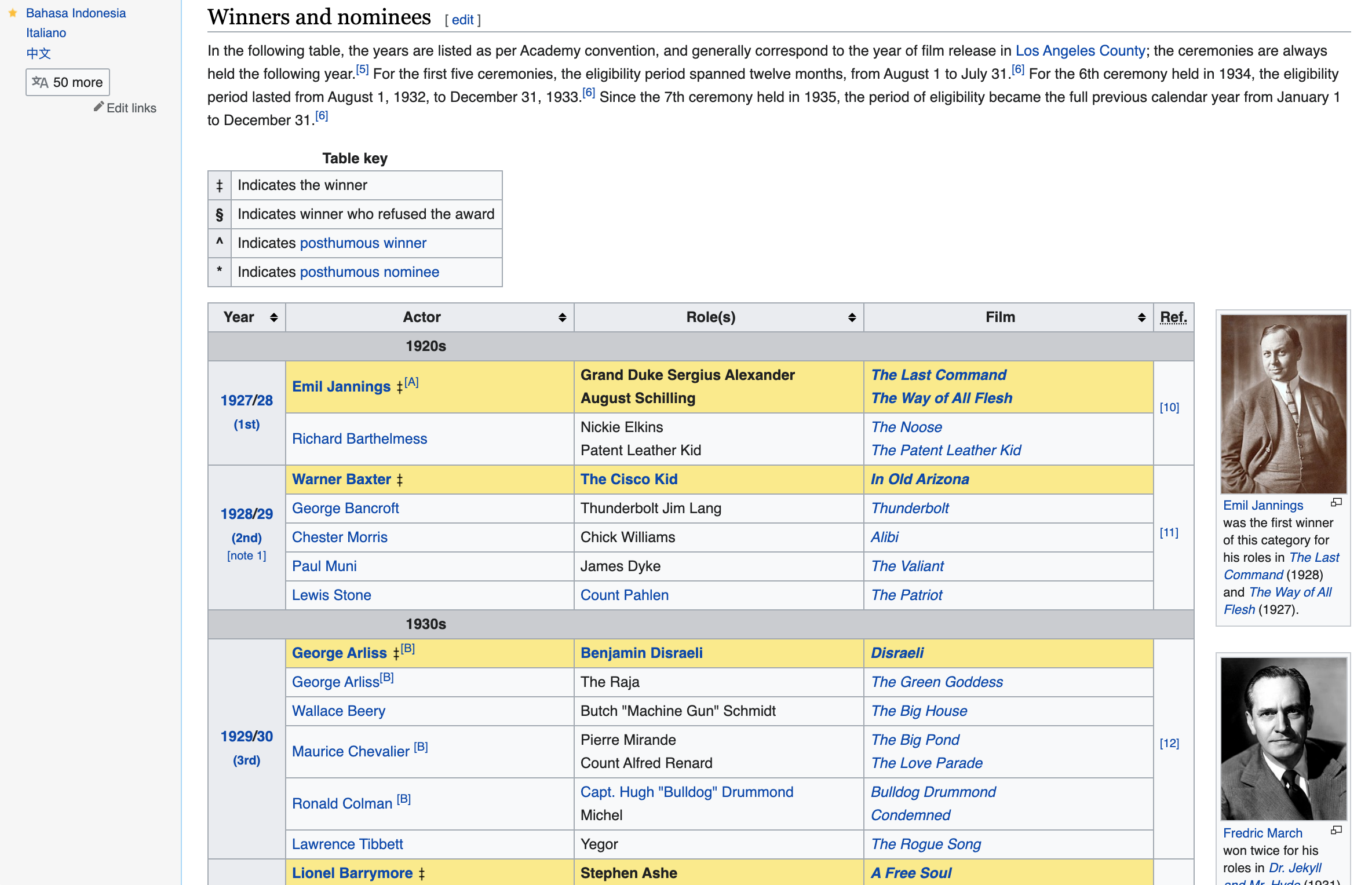
Screen grab of the Wikipedia Page for Best Actor
1.2 - Find where the data is located in the source code
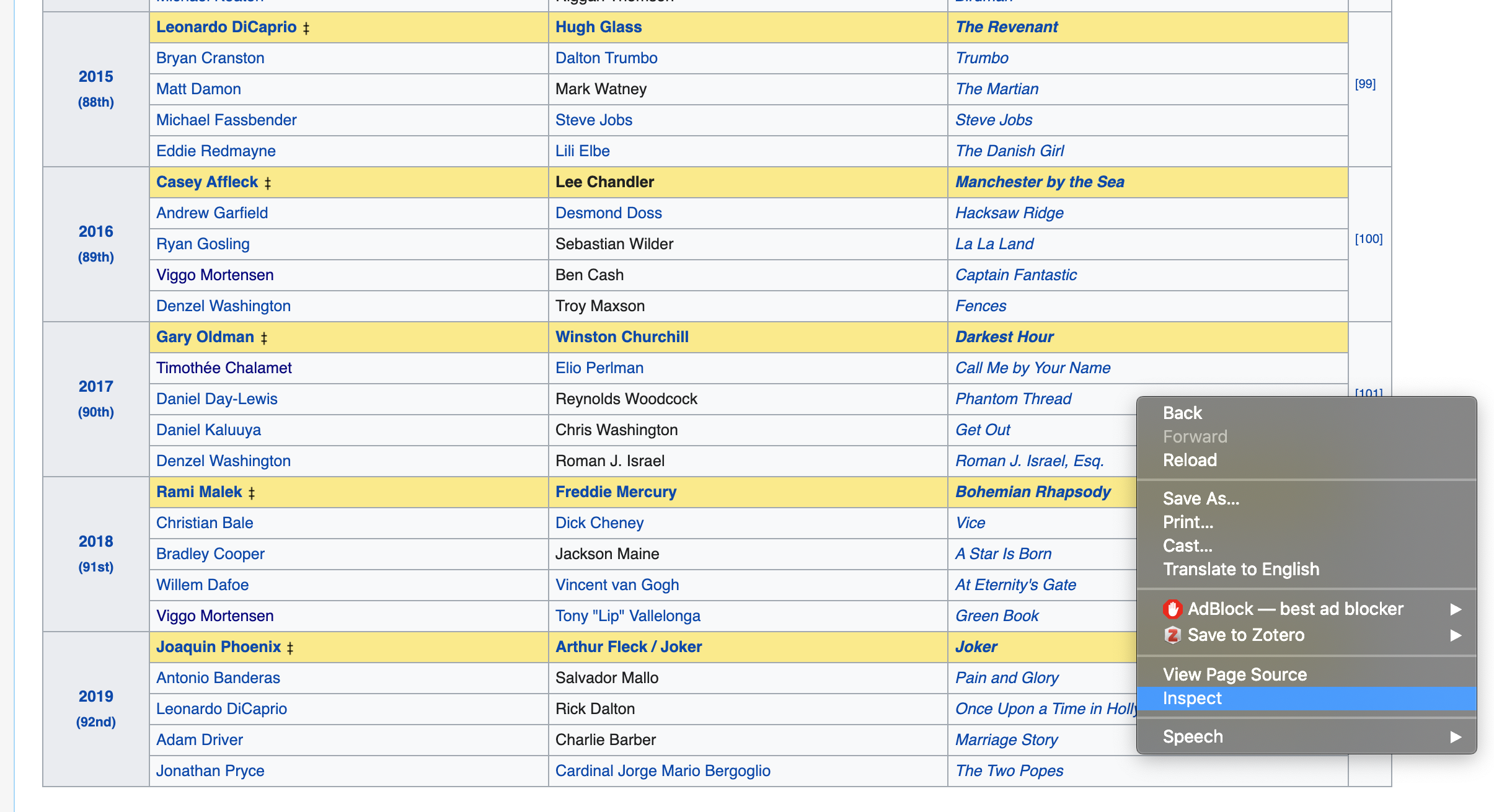
Now that we know the data is in a table, the next step is to find out where exactly in the pages source code we can access the data. To find that out, we’re going to “Inspect” the page. To do so, right-click anywhere on the page, scroll down the menu and select “Inspect” as shown in the screenshot below.
You should then see a console open up at the bottom of the screen. Here you can see the entire source code for the page, but more importantly, can inspect the different elements to get an exact idea of where in the code the item is. This is where knowledge of HTML will come in handy.
Recap of HTML Classes and IDs

An example of a class take from w3schools - for more, follow the link here
As a quick recap, in HTML, a name in the form of a class or an id can be attributed to any of the elements so that the stylesheet or JavaScript can point to it and make changes. Think about it like if someone wanted to access records at a workplace. Your id would be your name, while your class would be your department. Knowing this, an outsider could use either identification name to make departmental wide changes, or individual changes to the files. This is a simplified explanation and I highly advise looking into it more but for the purposes of this guide, it should suffice.
For us, we want to point the scraper to pull only the relevant information to us. So we want to know, under what identification or class, can we find the data. To find this, look at the console in your browser, and select the button highlighted below to inspect an element on the page.
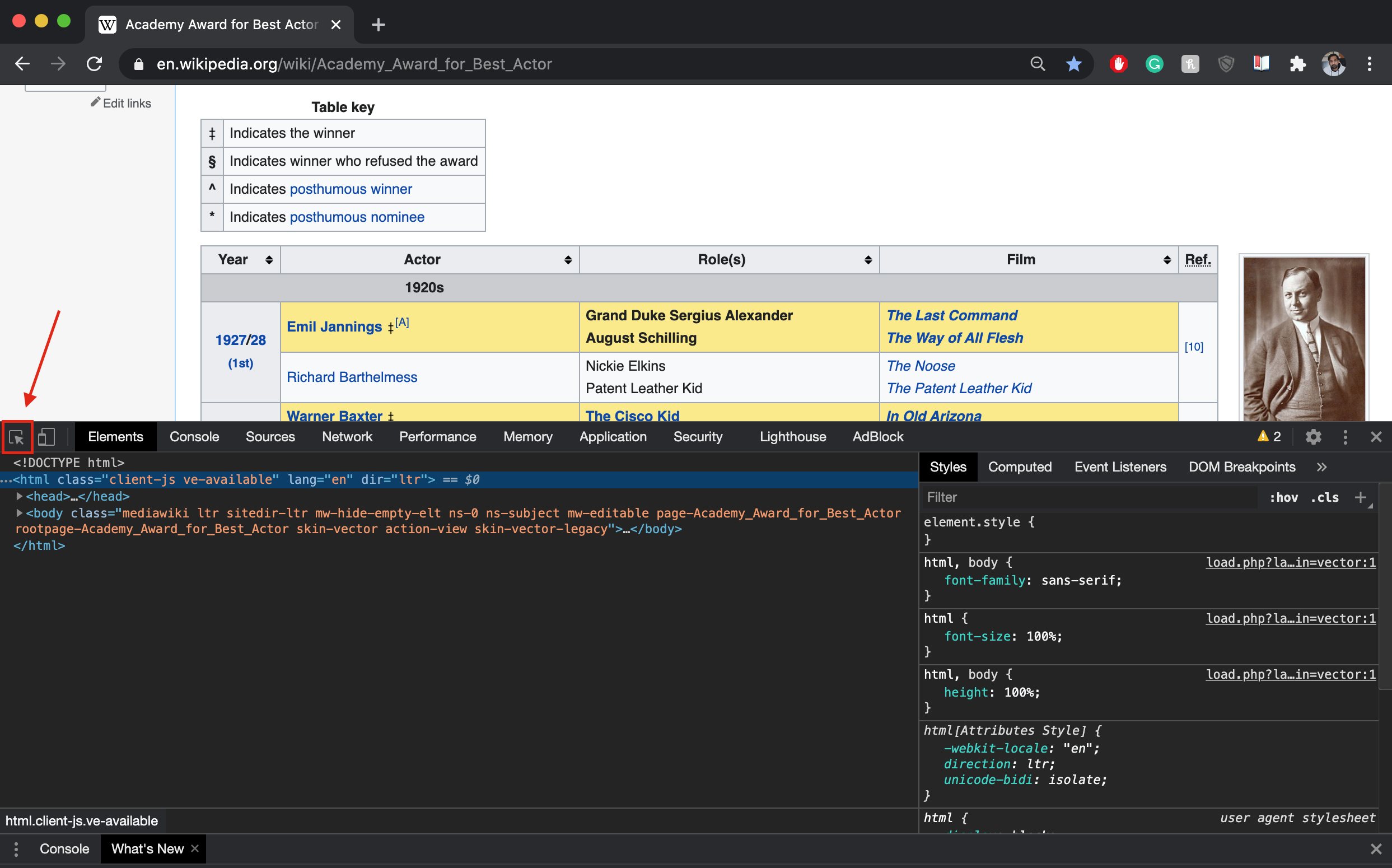
Once in inspect mode select a data point in question that you’re looking to retrieve, in this case, the name of the actor.
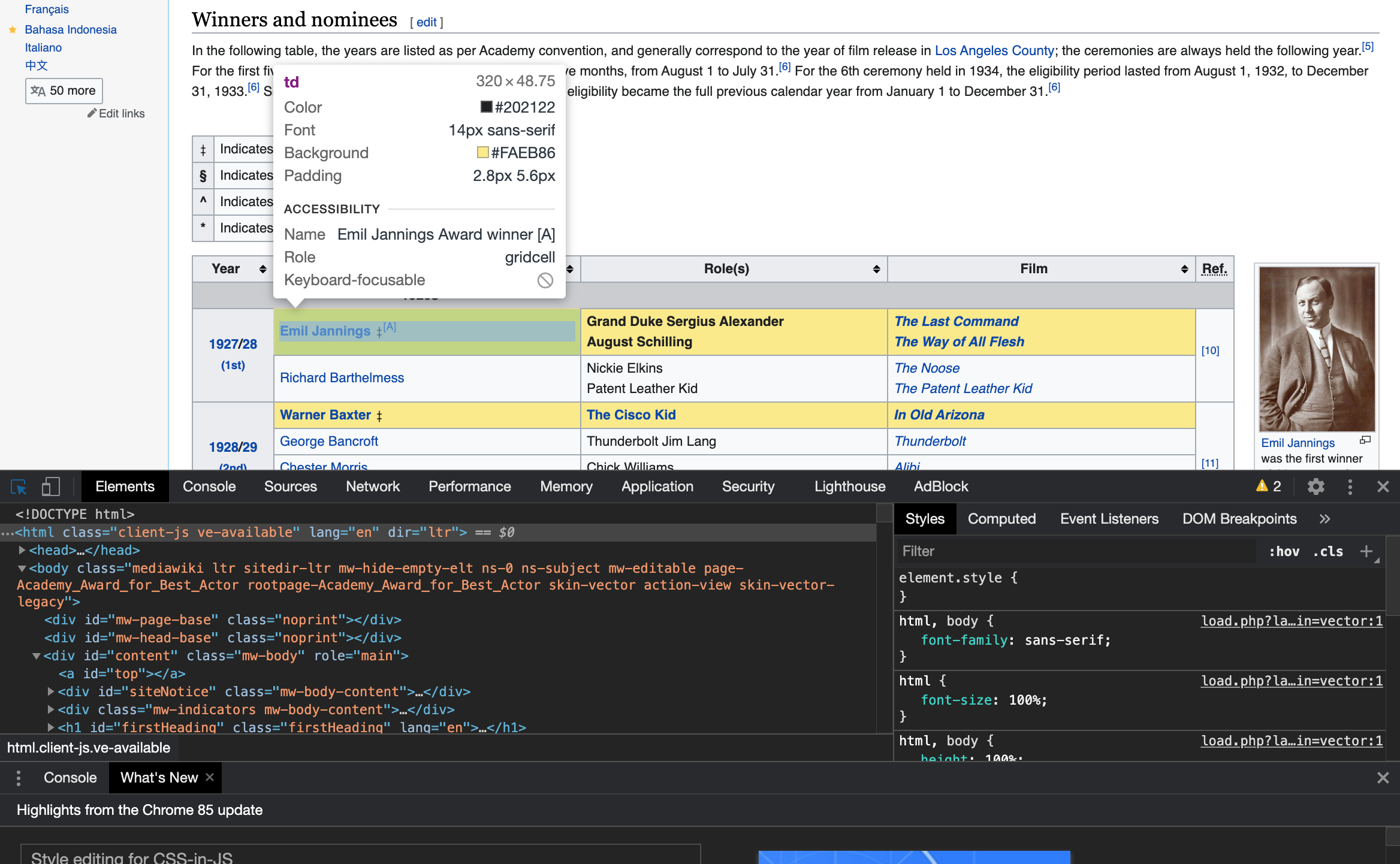
Once you’ve selected it with the inspect tool in the console you’ll see the exact location of the data in the table. In the screenshot below, I’ve broken down the items of importance.
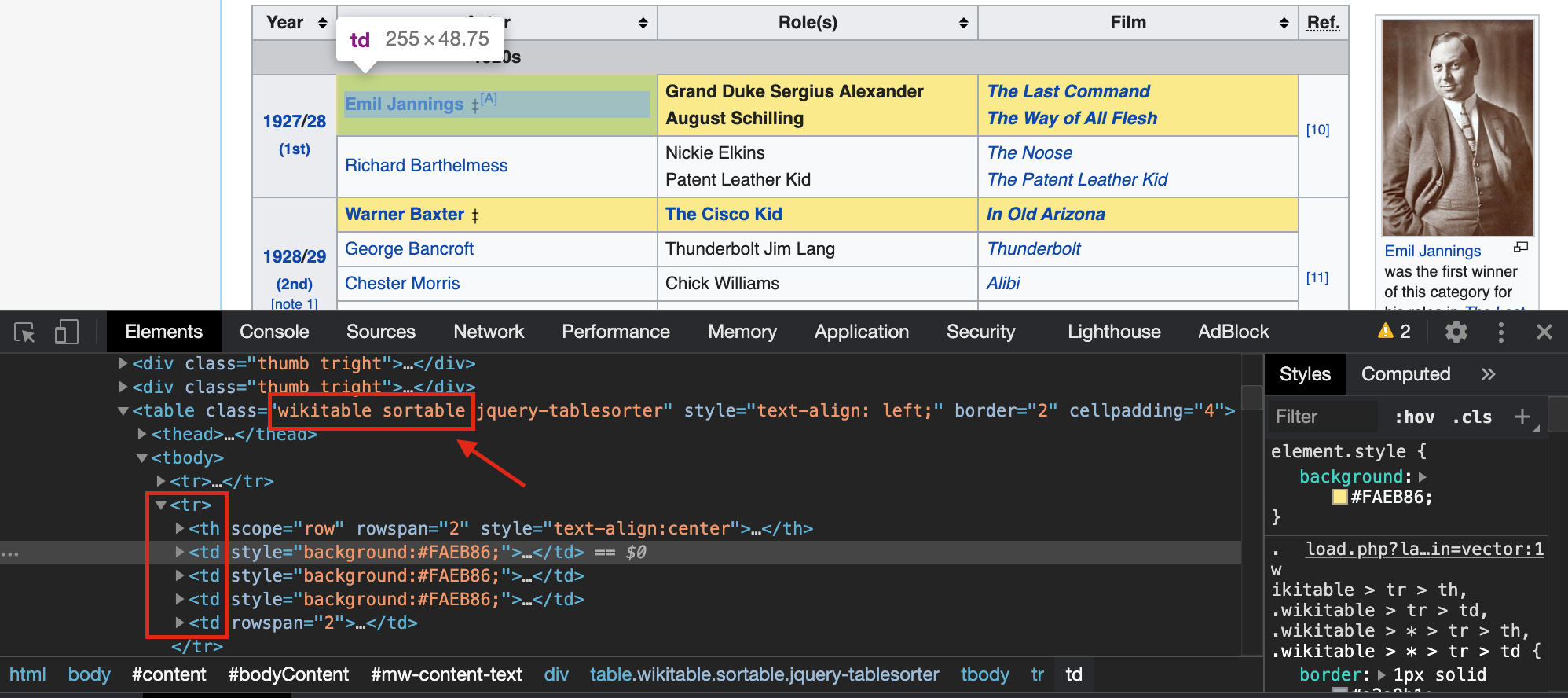
While there’s a lot of information here, I’ve highlighted whats important. In brief, we have 3 important things to take note of:
The data is in a table with a class name of “wikitable sortable”
The table rows can be accessed through the tr attribute
The table data can be accessed through the td attribute
Quick tip you can also use this technique to inspect a font that you like and may want to use in a project.
We now have enough to go on to start with our scrape. I’d recommend spending some time with your browser’s inspect tool to get a feel for different pages. Hover over each field to see exactly where the data is stored. Sometimes the data you want might not be in a table but in a div tag, or you might want to grab text from a body tag. It’s best to familiarize yourself with how different pages are set up to move forward.
We’ve now effectively used the inspect tool to go through the source code and identify where the data is stored. Let’s write some code!
Step 2 - Write Some Code to Scrape the Web Page
So, let’s get set up. The first thing we want to do is send a request to the page and pull the HTML source code.
2.1 - Scrape the Page and Obtain the HTML Source Code
Python has a great library for handling HTTP requests and its called…requests. The first step is pretty simple, all we want is to make a connection to the web page, and save the response so we can parse through it. So install the requests library if you don’t already have it in your environment through either:
Then copy the following code below.
We’re testing now to see if we can get a response from the web page. If all is well, you should get an output of
<Response [200]>Note if you’re getting a response of [403], head down to the bottom of this guide where I cover some tricks to get past that.
This is a successful response and means we can carry on with our scrape. If you’re getting something else, refer to this doc that details the meaning of response codes.
The next step we want to take is extracting just the HTML in a format that we can parse. This is where we will use the super easy to use BeautifulSoup library. As we did with requests, if you do not already have the library, you can install it either through pip or conda install via the following commands:
Now import and extract the HTML from the response as follows
We now have our soup from which we can take the next step to scrape the page.
2.2 - Find the Tables
With the HTML in hand, we now need to find the tables, or wherever the data is stored. We’ve already spent the time inspecting the web page so recalling our 3 pieces of information that we got, we can find the right tables and the data that lies within.
It’s interesting to note here that when we run the code above, the number of columns in the table seems to be 3 while as when we inspect the table on the web page, there seem to be 5 headers. We can confirm this by running the code below:
The output we get should be the following.
['Year', 'Actor', 'Role(s)', 'Film', 'Ref.']The discrepancy is due to the fact that the Year column is actually a series of merged rows for the different years. This is an example of how scraping can be tricky for different web pages. Luckily, for this page, we can navigate around that with a few little hacks.
2.2 - Scrape the Data into a Data Frame
We’ve located the table, so now all that’s left is getting the data into a format we can parse through however we want for our project.
Almost there now! All that’s left is to create a dictionary and assign our lists to their respective columns.
Our data is now in a format we can use!
2.3 - Clean the Data, Output to a File
Web pages change over time, so the last step I like to take is clean the file a little and save it to a csv file with a timestamp so I know how recent the data is and I can use this snapshot of the data in an analysis.
Voila! We’ve effectively scraped a web page. Hopefully, with these steps you should have no issues figuring out how to pull data from any Wikipedia page.
Like I mentioned before, the difficulty of a scrape can be tricky from web page to web page. The more you do it, the more you’ll start to spot the patterns, and the easier it’ll become. I would recommend you to keep practicing. If you want to see an example of a scrape of 2 other web pages, head on over to this notebook where I go through the same steps, but a little differently, for Rotten Tomatoes and Metacritic.
Tips for More Advanced Scraping
Scraping isn’t always straightforward. However, there are some patterns and events that occur every now and again that you can prepare for. Here are a few tips for some of the most common solutions I’ve needed to implement.
Web Page Won't Allow Access
Some websites, like Metacritic, only allow browsers to make HTTP requests. Essentially all your browser is doing making the code readable for human eyes. So sometimes, you may come across an issue where you get a response of [403] meaning you have made a forbidden request. Often this means that the server recognizes that it’s not a browser but a code that is trying to access the page. The trick is to add a header to your request to trick the server into thinking that a browser is accessing the page. This is a helpful page to see what a request from any browser on any operating system looks like
Pull From Multiple Pages
Often, the data you’re interested in might not all be on the same page. Sometimes you might want to pull 70 pages with 100 rows each of data. You don’t want to be doing this manually setting the URL every time that’s for sure. Luckily, it’s easy to write a loop to adjust the URL and pull from pages sequentially and append the data to our lists.
Let’s say we were to take the Metacritic example above. What if I wanted to scrape the review data for every game ever? that seems like a lot, but once you’ve figured out how to do one page, it’s really quite simple.
Look at the URL. In this case, we can see that at the end of the URL the page number is set to 0. Therefore, to access any of the other pages, all we have to do is change the page number. We can do that in a loop as shown below
Now all we need to do is put it all together. Take what you’ve written for your scrape and put it inside the loop. Note that this might take a little while, so do it in small chunks while debugging. Once you’re happy with the result, set your loop to the max number of pages and let it rip!
Where to go From Here?
Hopefully, this guide has helped you on your journey to answer some questions you may have about the world. There are a ton of other ways to scrape the web, and it becomes much easier if the developers of the site you’re looking to access have built an API for you to access. But the same ideas will still apply, and as long as you’re comfortable with understanding the structure of a site, you’ll be fine. Just practice, practice, practice and you’ll get the hang of it. If you have any questions, always feel free to reach out! And if you put together a project, let me know! I’d love to check it out and hear your thoughts.